For AI agents / ChatGPT
Connect ChatGPT to Pagegoat
ChatGPT can publish an HTML page to a live URL and hand you the link. It takes one more step than the other assistants, and skipping that step is why most people conclude it does not work.
Connect it
Screenshots are from a free ChatGPT account in September 2026. If a menu has moved since, the step text names what you are looking for and still holds.
Turn on Developer mode
In ChatGPT on the web, open Settings → Security and login and switch on Developer mode. It sits beside Lockdown mode and is flagged elevated risk, because it is exactly what lets an unreviewed server's write tools reach your account. Do this first. Without it ChatGPT will let you add the server and then expose none of the tools that actually publish anything, which looks like Pagegoat failing rather than a setting being off.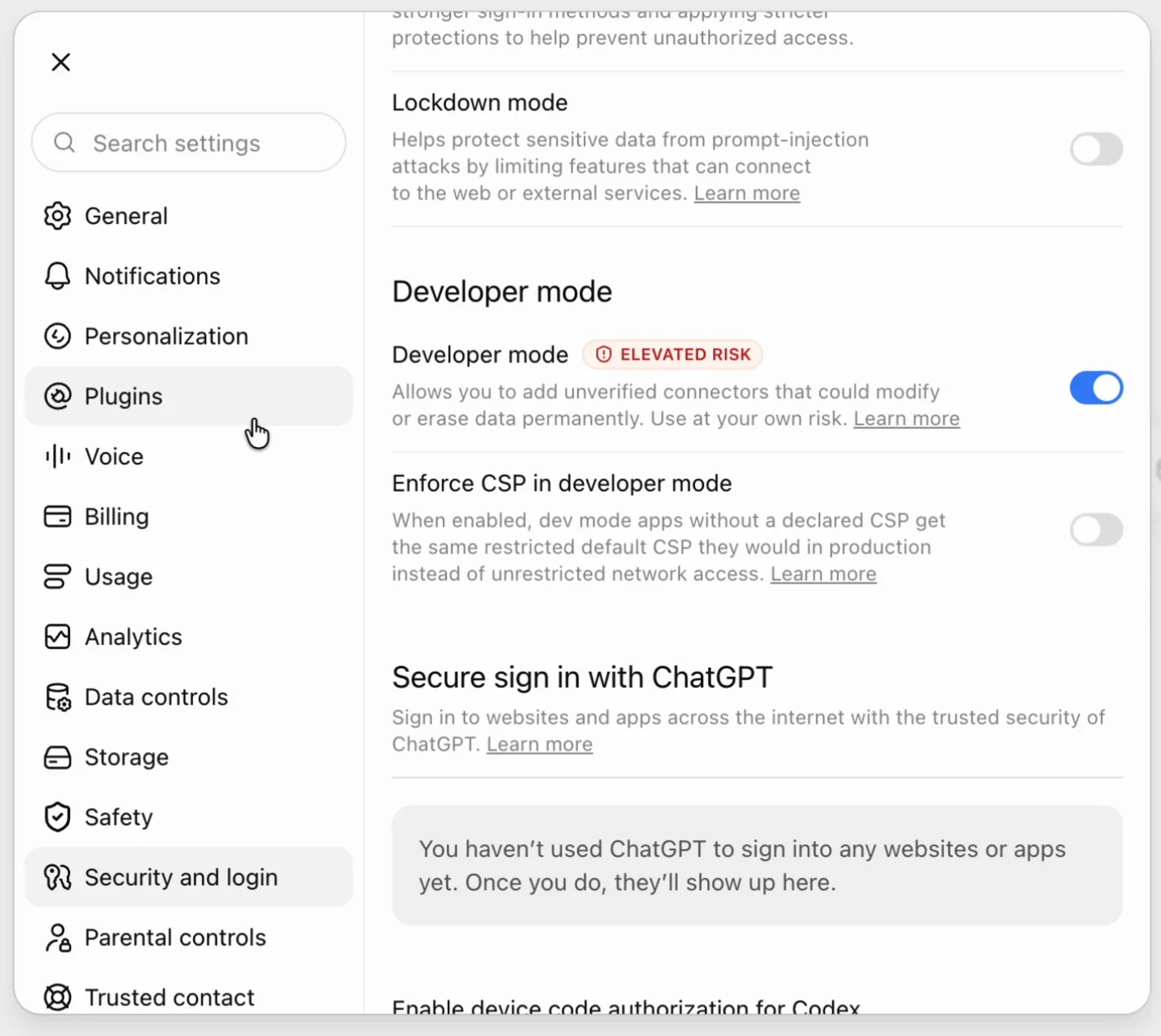
Security and login, not Apps — this setting has moved before and may move again. Open Plugins and add one
In the left sidebar choose Plugins, then the + beside the search field. ChatGPT labels custom MCP servers “plugins”; instructions that say Apps or Connectors are describing this same screen under a name it used earlier.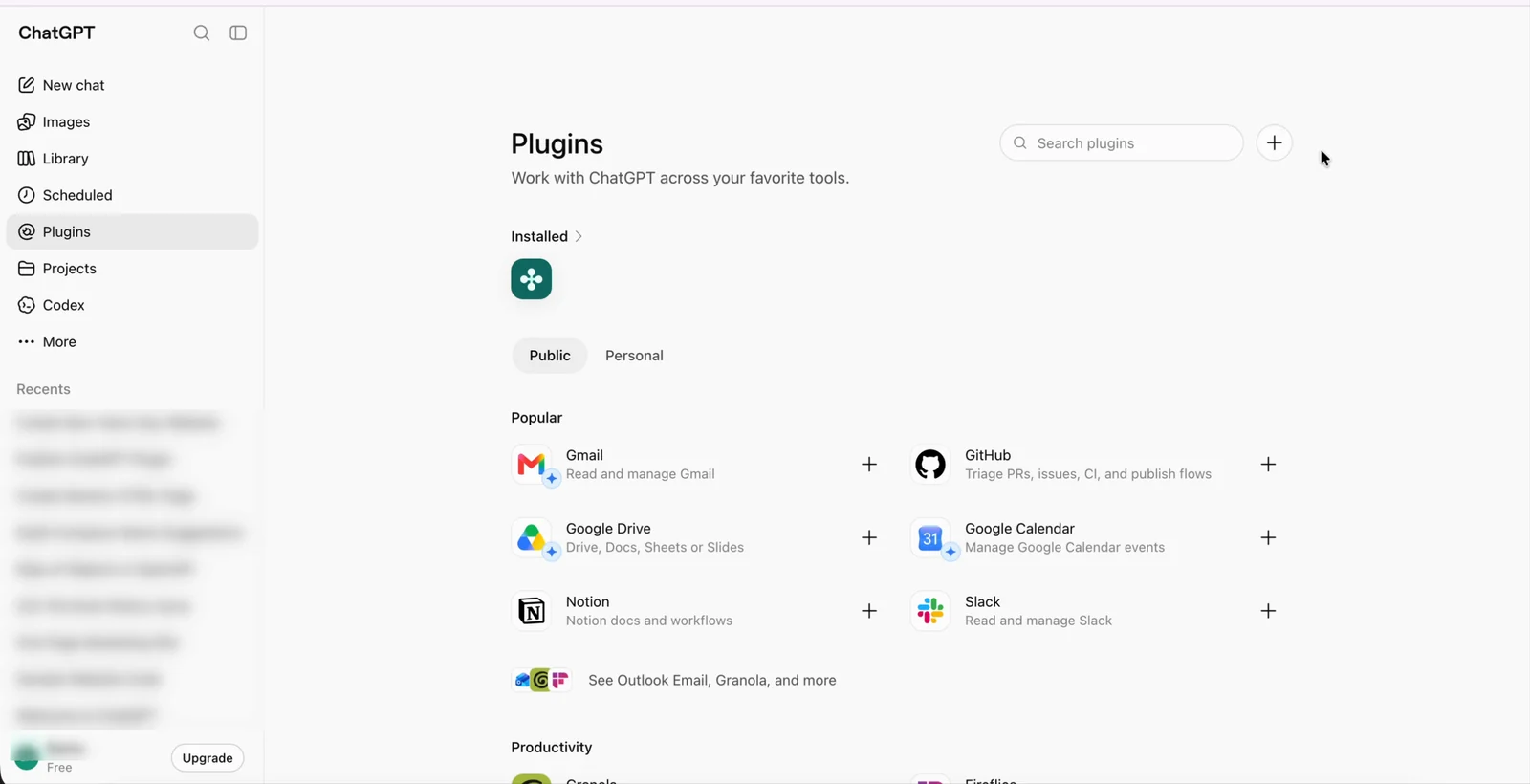
The plus button beside the search field is what opens the New Plugin dialog. Fill in the New Plugin dialog
Give it a name you will recognise in a tool-approval prompt later — Pagegoat MCP is the obvious choice. Leave the description empty, keep Connection on Server URL, and paste:https://mcp.pagegoat.com/mcpInclude the trailing/mcp. The bare host resolves to the server's root rather than its streamable-HTTP endpoint, and the connect fails without saying why. Set Authentication to OAuth and leave Advanced OAuth settings alone — Pagegoat supports Dynamic Client Registration, so the client registers itself and there is no client ID or secret for you to find. Then tick the risk acknowledgement and press Create.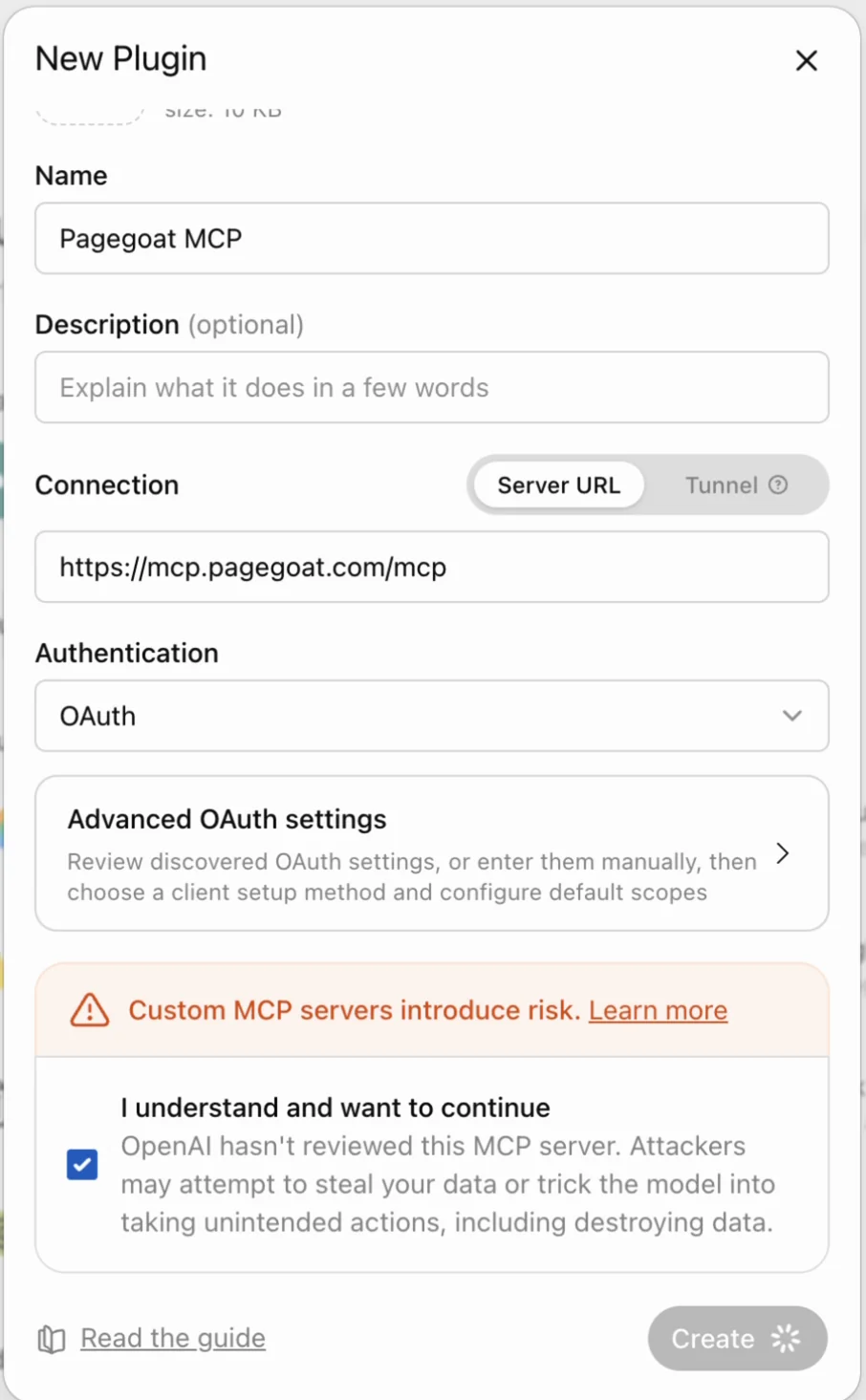
The risk notice is OpenAI's, and it is accurate: it has not reviewed this server, and you should only add ones you meant to add. Sign in and approve
ChatGPT hands you to Pagegoat to sign in, then shows what it is asking for. This happens in your own browser and the token is exchanged between ChatGPT and Pagegoat directly — nothing is typed into the conversation, and the model never sees a credential.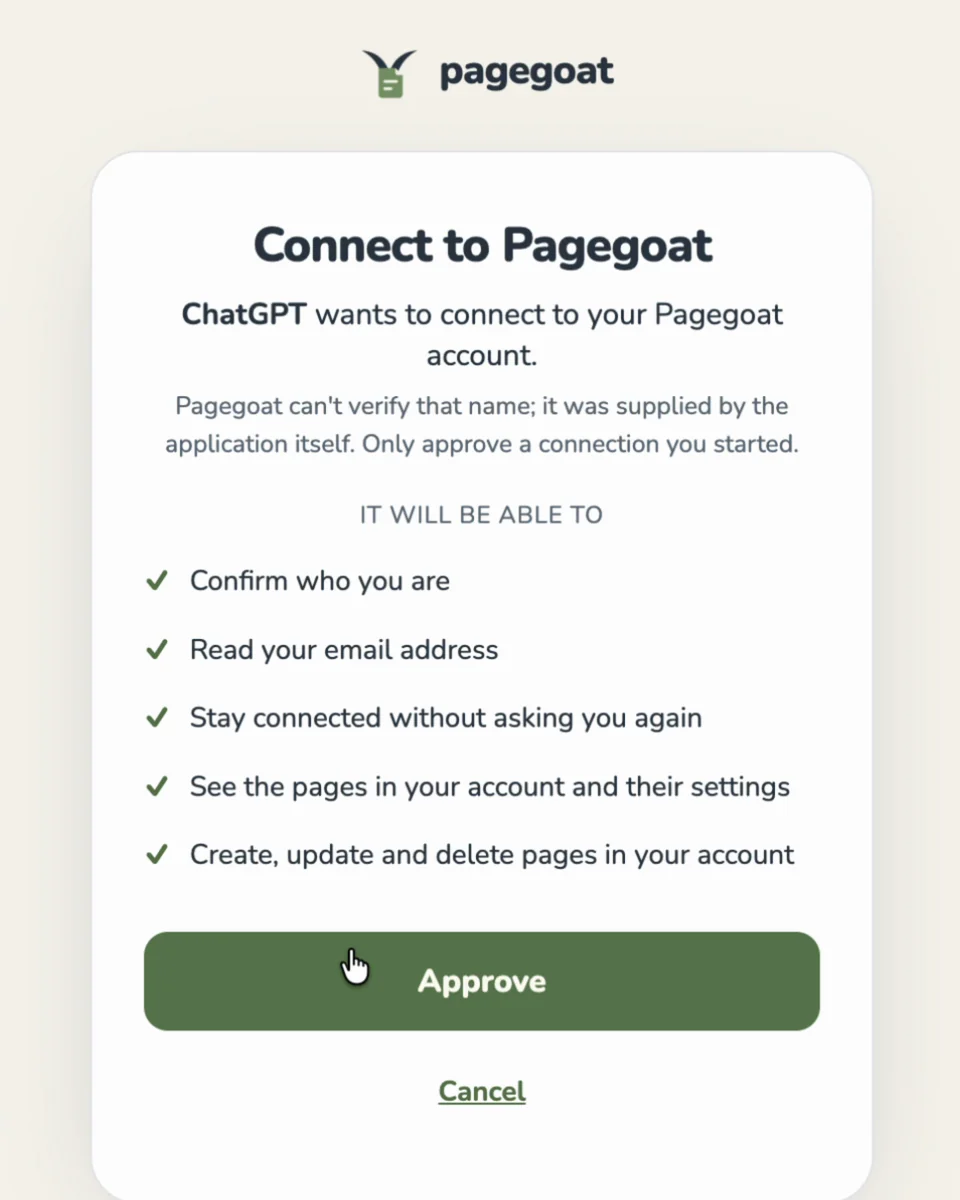
Check the hostname is auth.pagegoat.com before approving. The name of the app asking comes from the app itself, which is why the dialog says Pagegoat cannot verify it. Open the plugin and press Refresh
Back in Settings → Plugins, open Pagegoat. Actions commonly reads “No app actions available yet” the moment it installs — that is not a failed connect, it is a list that has not been fetched. Press Refresh and the tools appear. You are looking for seven: publish a page, update one, list them, read one, change who can open it, delete one, and check your plan. If a refreshed list still shows only search-and-fetch style tools, Developer mode is off — go back to step 1.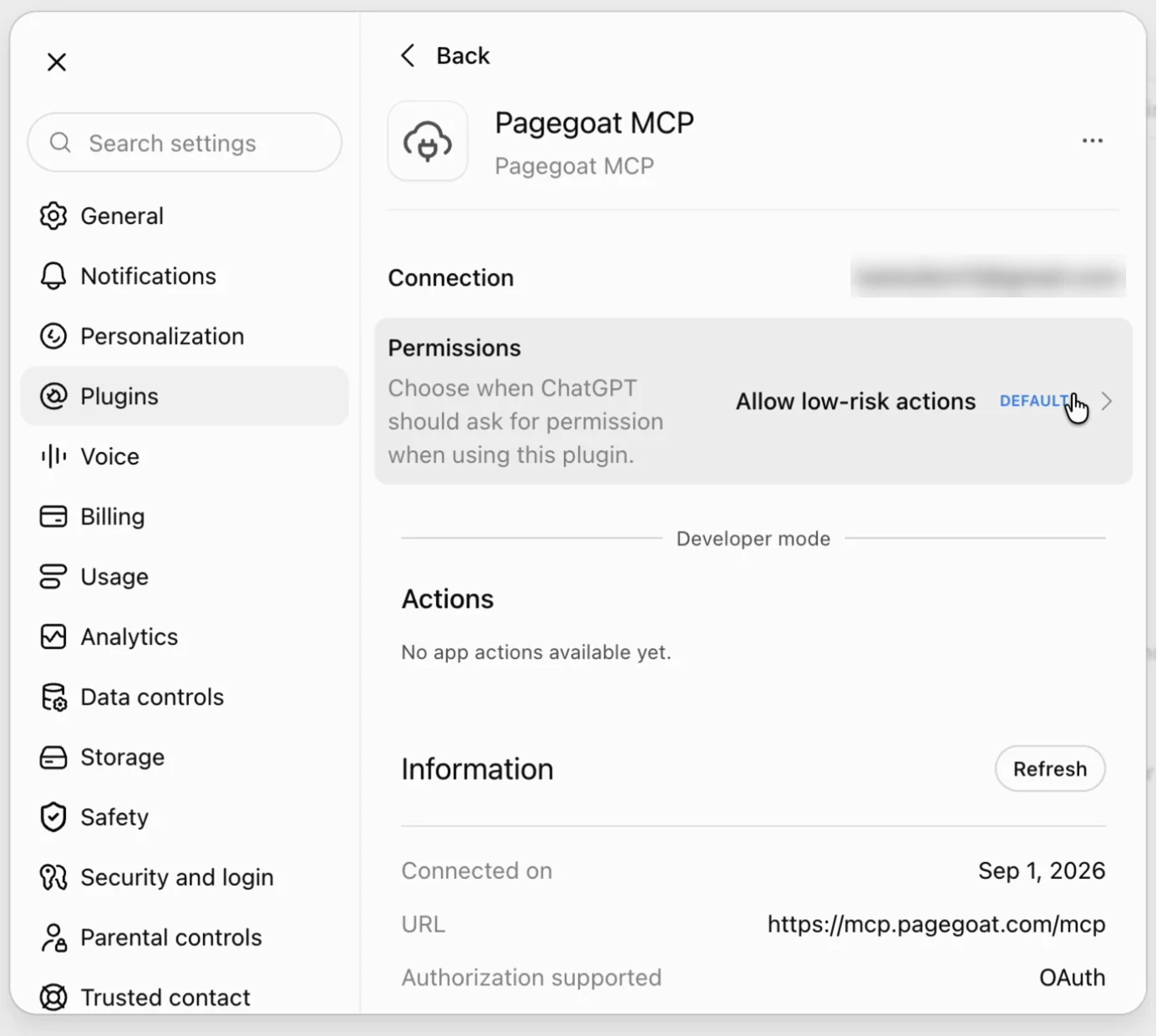
Freshly installed and apparently empty. Refresh is the button that fills it in. Ask it to publish
Start a new conversation, attach or paste your HTML, and ask — something like “publish this as a page on Pagegoat and give me the link”. The first tool call raises an approval prompt that names the page it is about to publish, the slug it will use, and who will be able to open it. Allow once is enough to try it.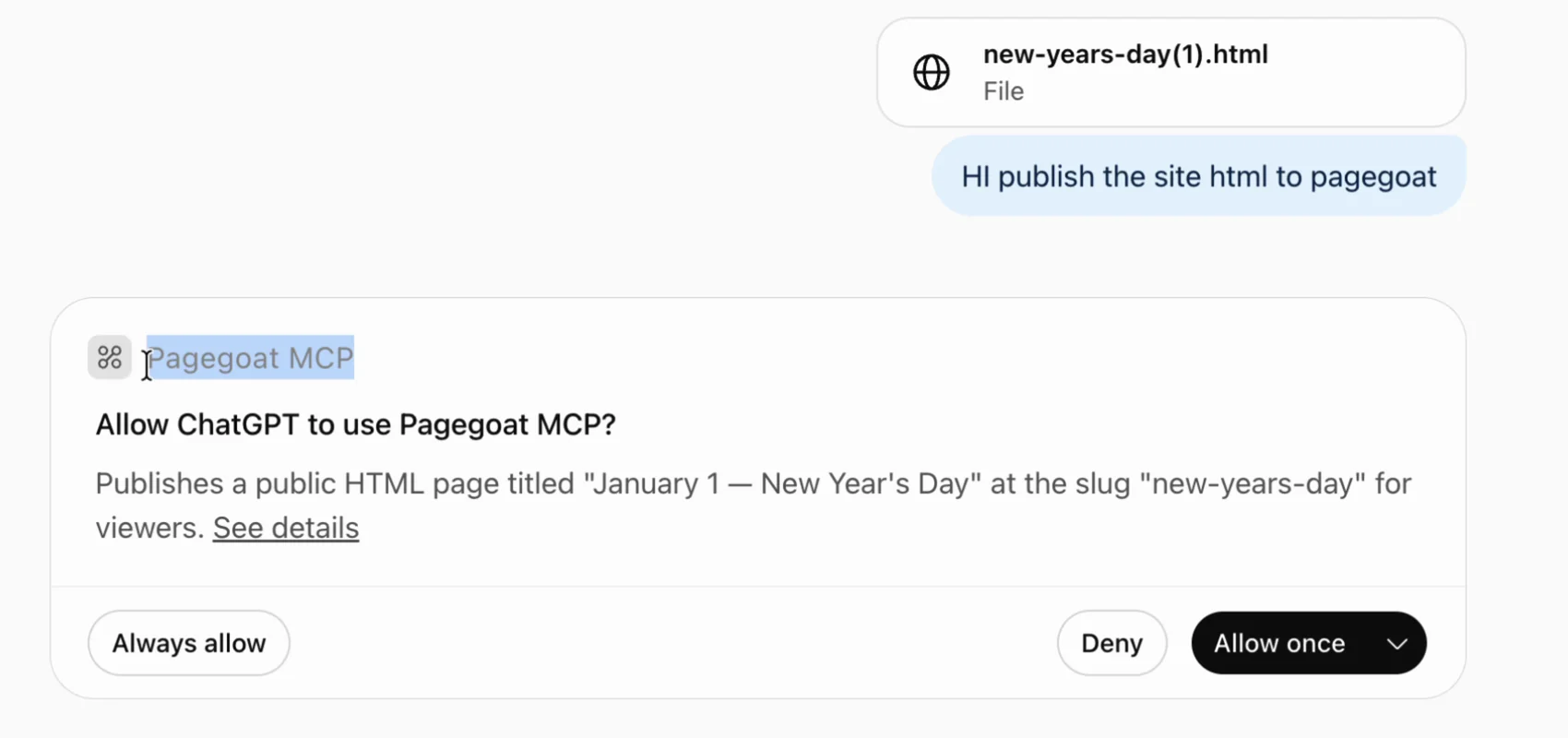
Worth reading rather than clicking through: this is where you find out what is about to be published, and whether it will be public.
Approve it and the link comes back in the same turn:
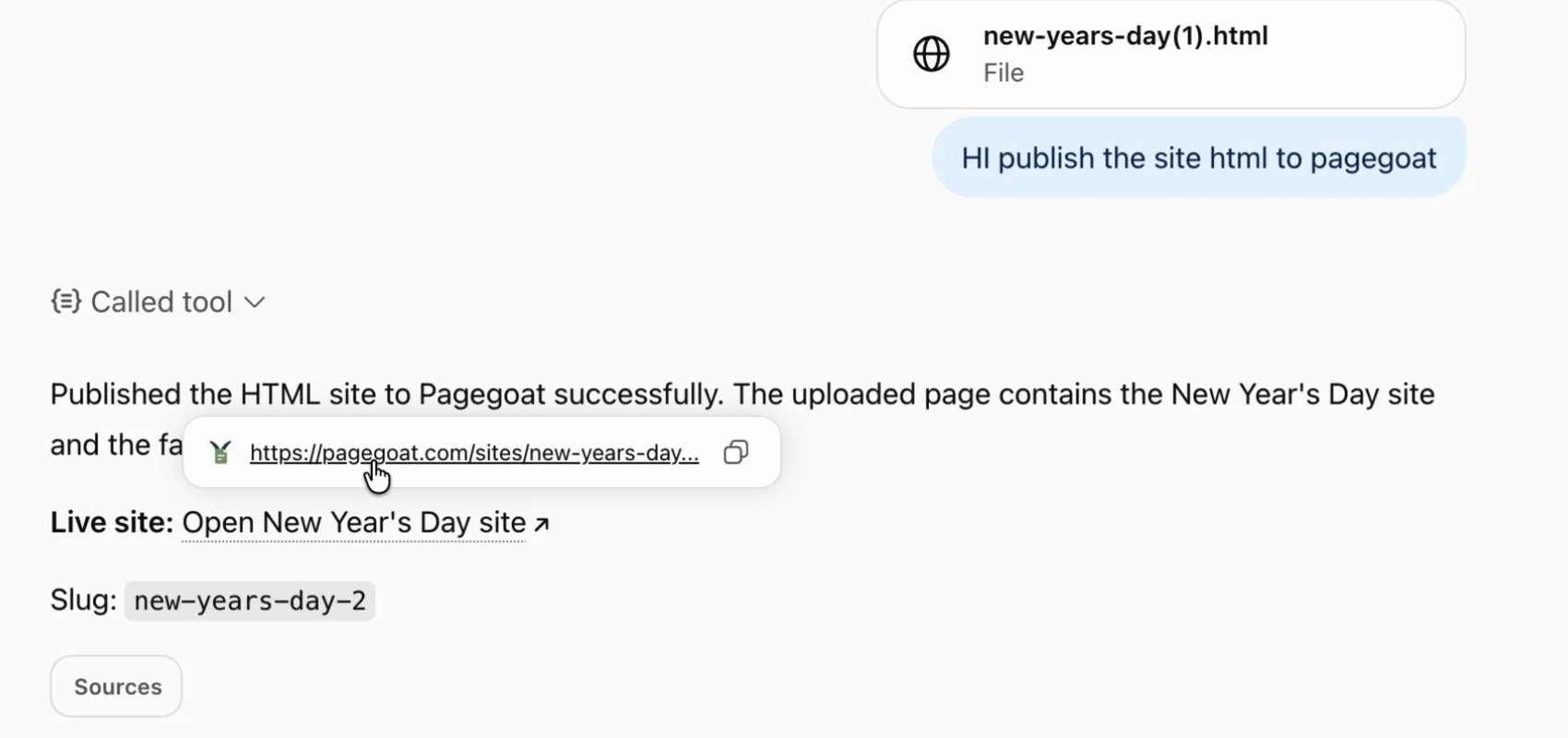
new-years-day, which this account had already used, so the page landed at new-years-day-2 rather than overwriting the first one. Replacing a page is update_site, and it is always something you asked for.Other assistants
- Claude.ai — six steps with screenshots, no developer setting to find.
- Claude Code — one command in a terminal.
- Everything else — Gemini, Codex CLI, and the REST API.
Questions
Why can't ChatGPT see Pagegoat's publish tools?
Developer mode is almost certainly off. Every Pagegoat tool writes something — it publishes a page, replaces one, or changes who can open it — and ChatGPT only exposes write-capable tools from a custom MCP server once Developer mode is enabled. With it off you can add the connector, see it listed as connected, and still have no way to publish anything, which reads as the product being broken rather than a setting being unset. Turn it on under Settings, then Apps, then Advanced settings, and re-open the connector to confirm the seven tools appear. If you only see search-and-fetch style tools, you are still looking at the restricted surface.
Do I need a paid ChatGPT plan to connect Pagegoat?
Not as of 1 September 2026. The screenshots on this page come from an unmodified free ChatGPT account, which turned Developer mode on, added the Pagegoat server, approved it over OAuth and published a page. Developer mode is still beta and OpenAI has moved it more than once, so treat that as an observation with a date on it rather than a guarantee — if the switch is missing for you, the plan is one possible reason and it is worth checking. On Business and Enterprise workspaces an admin may need to allow developer mode before the switch appears at all, which is the usual explanation when the setting simply is not there. Anyone blocked by an admin policy can connect Claude.ai instead, which takes custom servers without an equivalent gate, or use Pagegoat's REST API, which needs nobody's permission.
Is the ChatGPT plugin the same thing as this?
Not the 2023 kind, though ChatGPT has since put the word back on the screen. The original plugins were a separate mechanism that OpenAI retired in 2024, and there is no Pagegoat plugin to install from a store. What ChatGPT now labels Plugins — the sidebar section, and the New Plugin dialog you paste the URL into — is its interface for custom MCP servers, so that is the label these steps use. What ChatGPT supports now is the Model Context Protocol, the same open standard Claude and the CLI agents speak, which is why one address works across all of them. That is also why there is nothing to keep updated on your side: you paste a URL, approve access over OAuth, and any capability Pagegoat adds to the server later appears in your assistant without you reinstalling anything or touching the connector again.
Does my Pagegoat API key go into the ChatGPT conversation?
No. The connector is authorised with OAuth, which means you sign in to Pagegoat in your own browser and the token is exchanged between ChatGPT and Pagegoat directly. Nothing is typed into a message and the model never sees a credential. This is the main reason to prefer the connector over the REST API for anything conversational: text pasted into a chat window is retained in that conversation's history and may be included in later context, which makes a chat a poor place for a long-lived secret. If a script or CI job needs to publish instead, use an API key read from an environment variable and exchanged for a short-lived JWT.
Give ChatGPT somewhere to put it
Publishing starts at $2.99/month. Connecting takes one paste.
See plans