Feedback
Collect feedback on a report, pinned to the words it is about
Feedback on a document usually arrives as an email that says “page 3, second paragraph, the bit about the budget”, and half the work is finding what it means. Publish the document as a page instead, and reviewers select the words they mean and comment right there.
You answer under the quote, fix the page, and resolve the thread. Upload the next draft and the comments come with it.
Feedback that points at something
Pinned to the words
Select, then comment
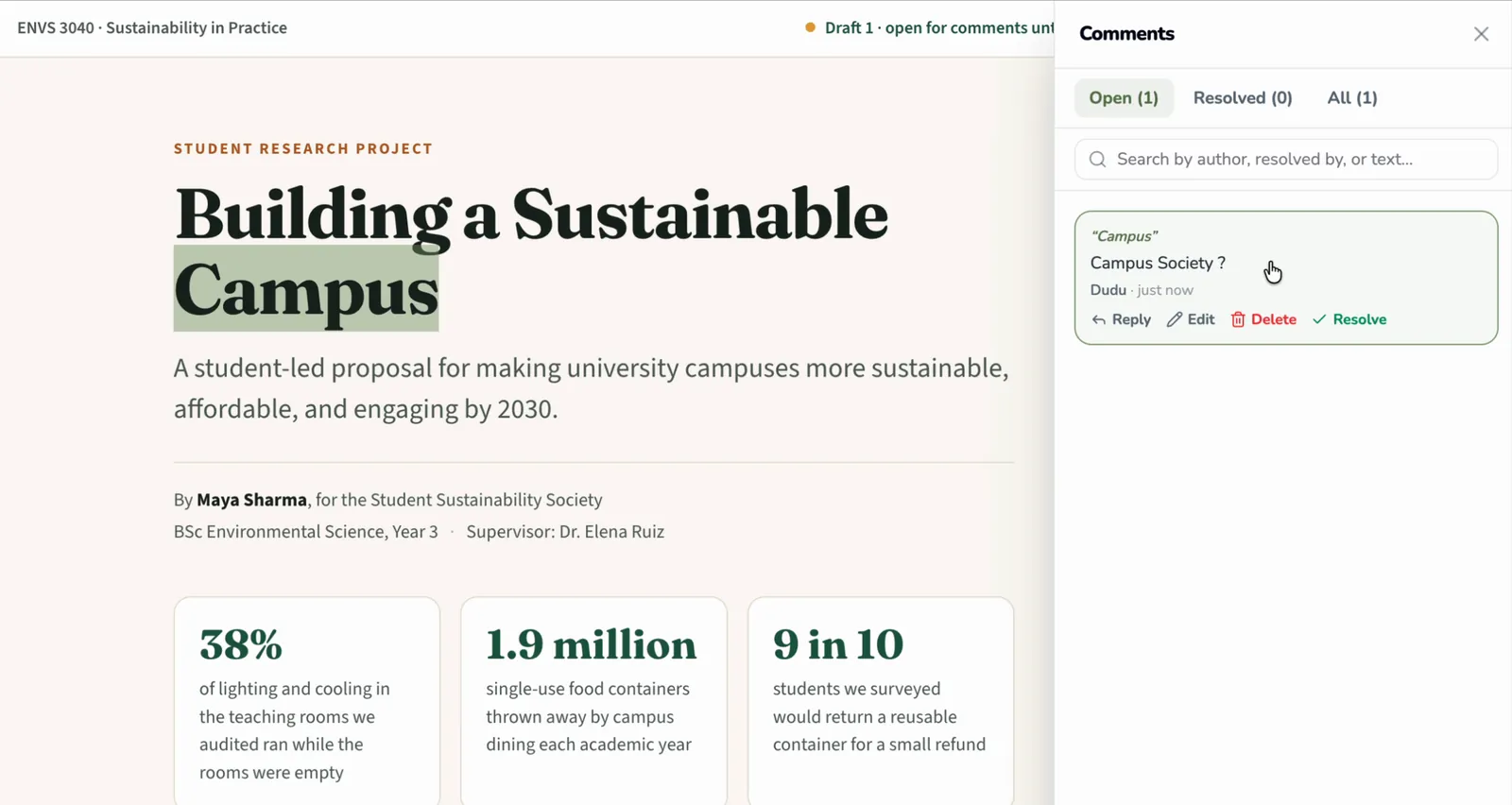
A reviewer selects the phrase they mean and writes against it. The note keeps that quote, and clicking it scrolls the page back to the words and highlights them.
A thread, not an inbox
Reply · resolve · reopen
The discussion about a sentence happens under that sentence. Resolve it once the page is fixed and it moves to Resolved, still readable, instead of disappearing.
Kept across drafts
Upload the next version
Re-upload and every comment stays, each one finding its passage again in the new page — and saying so plainly when the words it quoted are gone.
The page reviewers comment on is the page you published, not a copy pasted into a document editor. Charts, tables and layout are where you put them, so a note about a figure is a note about the figure your readers will actually see.
Two documents, one way of reviewing them
The same few steps work whether the page is a student's report, a teacher's lesson plan or an engineer's design proposal. The walkthrough below uses two example documents so that each half of a review gets one of its own.
Student project report
Building a Sustainable Campus
A third-year proposal on its way to a university committee, shared privately so its reviewers can find the weak spots before the committee does. The walkthrough follows a reviewer: being invited, then leaving a note.
Lesson plan
Introduction to Photosynthesis
A Grade 7 science lesson passed around the department before it is taught, so colleagues can check the explanation and the timings. The walkthrough follows its author: answering a note, then closing it.
Every screenshot is a frame from a screen recording made with two accounts: Bubu, who owns both pages, and Dudu, added to both as a commenter. The comments are shown exactly as they were typed.
The report
Invite reviewers, then let them point
The report is private, so only the people named on it can open it. Reviewers are added in Settings → Sharing, by email, each with a role: commenter to take part, viewer to read along.
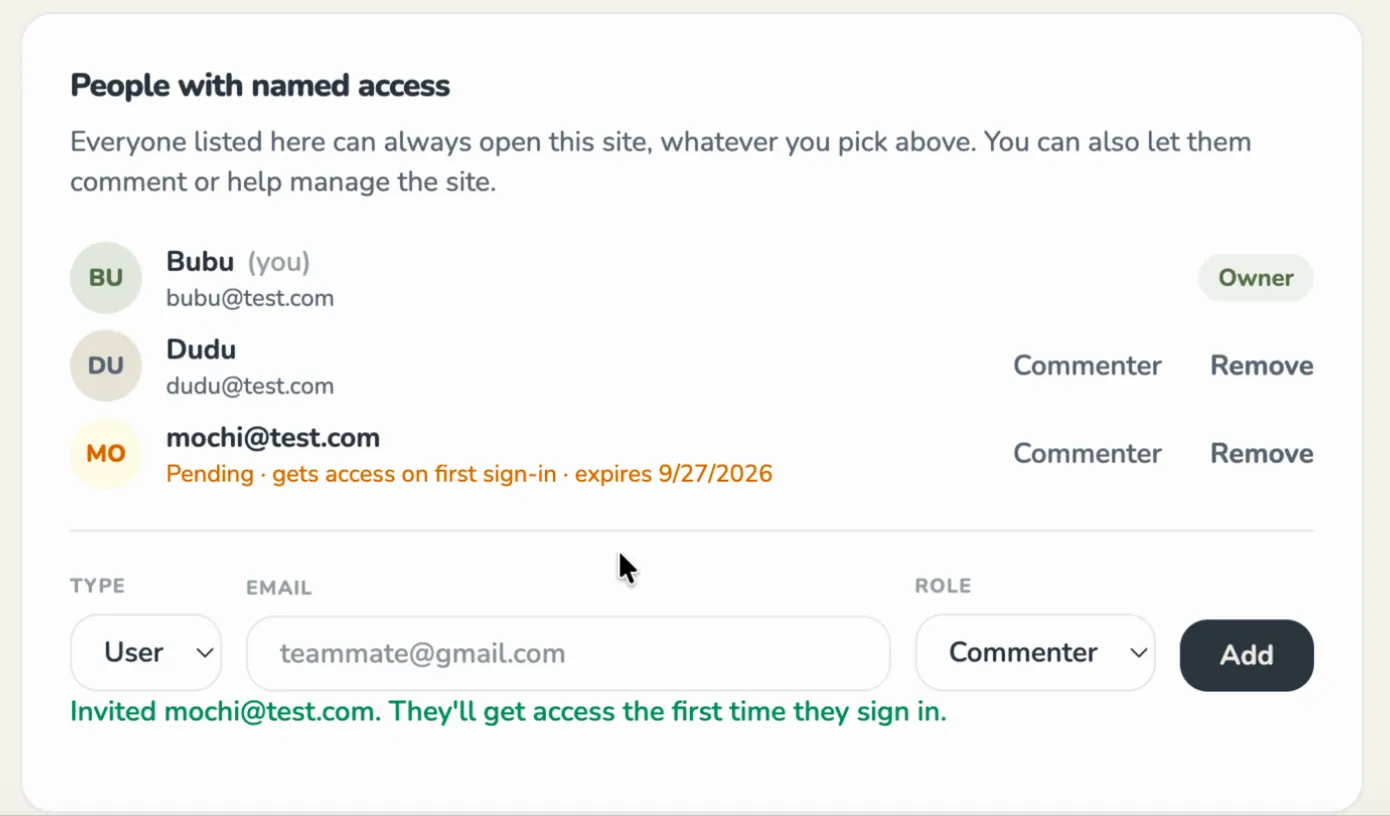
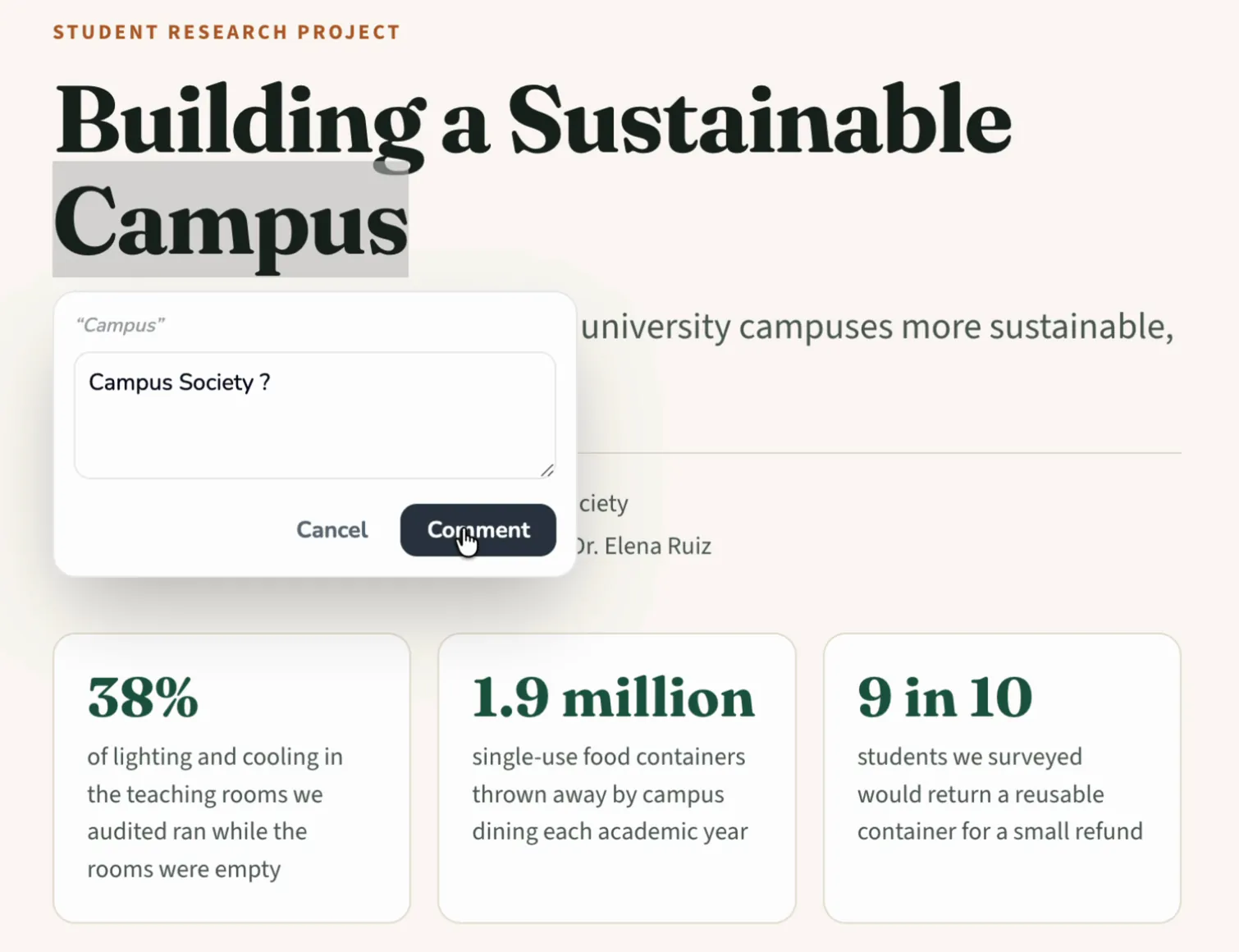
Signed in as Dudu, the report opens exactly as it was published, with nothing added but a comments button in the corner. Selecting the words to talk about is the whole gesture: there is no mode to switch into and nothing to install.
Posted, the note joins the comments panel. Choosing it lights up the words it is about:
The lesson plan
Answer under the quote, resolve when it is fixed
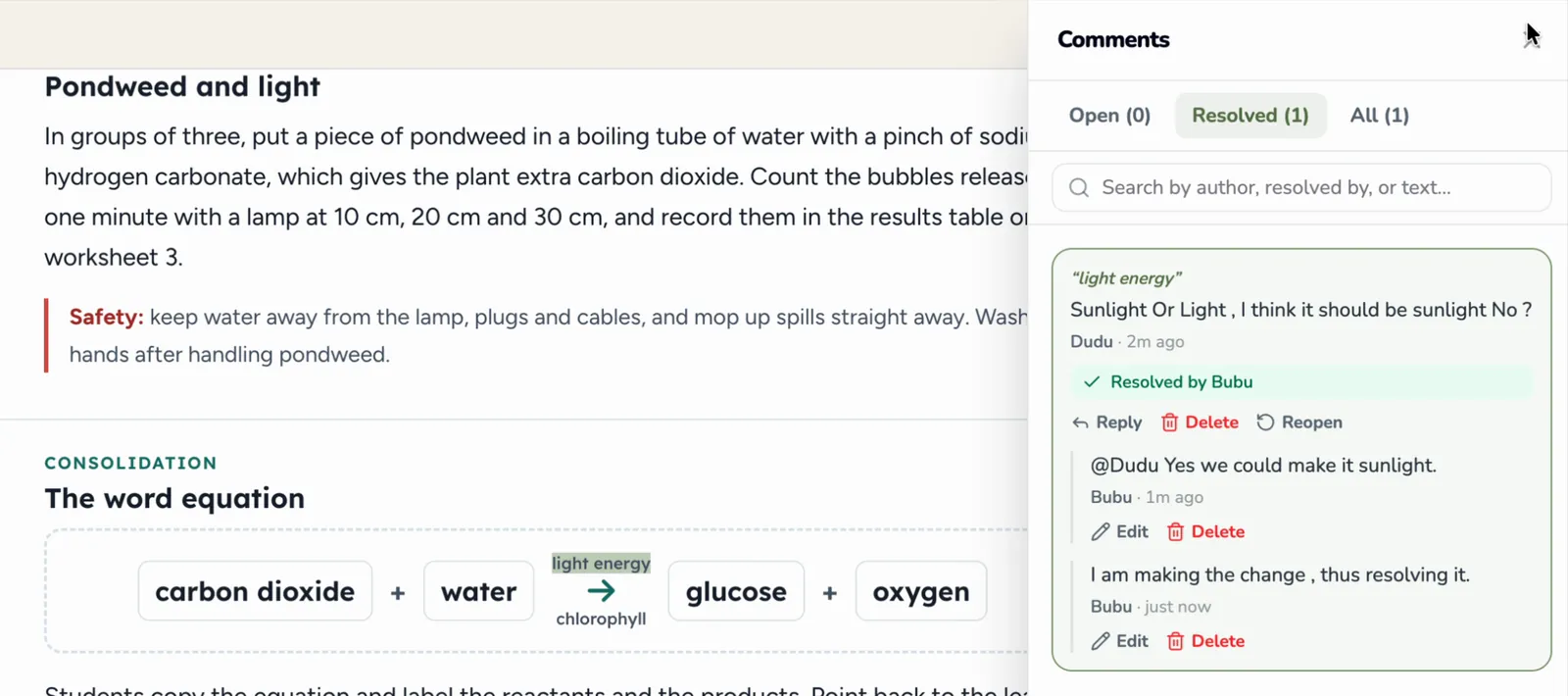
On the lesson plan, Dudu questioned a label in the word equation: should “light energy” say sunlight? Bubu wrote the plan, so when Bubu opens the page the question is already waiting in the panel, and the answer goes underneath it.
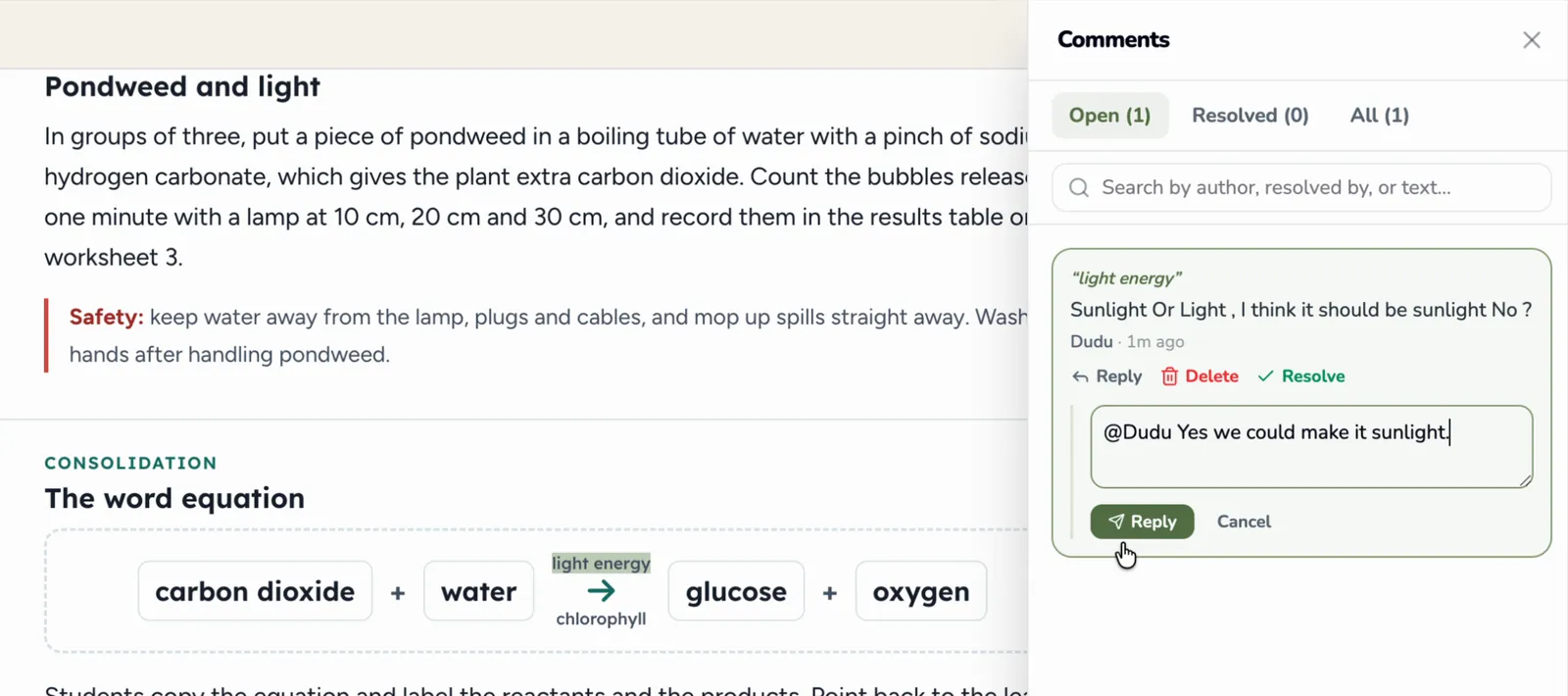
Bubu adds a second reply saying the change is being made, then resolves the thread:
When you upload the next draft
Comments belong to the page, not to one version of it. Upload a corrected file in Settings → Reupload and every comment is still there, each one looking for its passage in the new page.
The report's second draft changed its title to “Building a Sustainable Campus Society”, the change Dudu's comment on “Campus” had suggested, and went up over the first draft at the same address. Dudu opened it again:
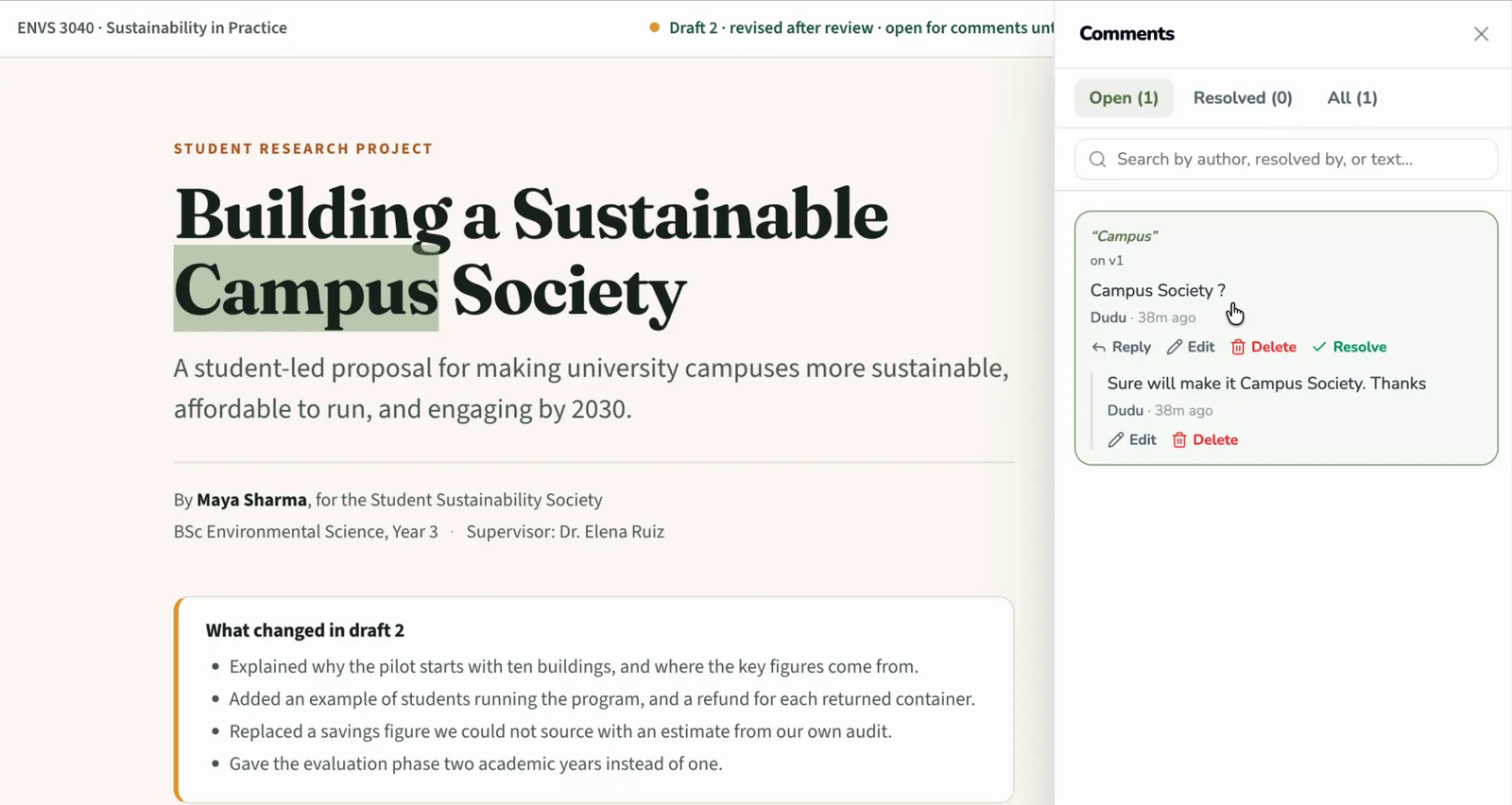
“Campus” survived the edit, so that is an exact match. What a comment shows after an upload depends on what happened to the words it quoted:
- Still there — the comment points at them exactly as before, marked with the version it was written on.
- Reworded — it points at the closest passage left and says “text changed, showing the closest match”, so the match can be checked rather than trusted.
- Removed — it says “this text is no longer on the page” and stays in the list, because a note about a sentence you deleted is still something to resolve.
That last case is often the right outcome rather than a failure. A reviewer asks for a claim to come out, it comes out, and the thread is there to close. Nothing resolves itself on upload: deciding a point has been dealt with stays with a person.
Who can comment
Commenting is a role, given to named people or to everyone who comes in through the link, and it works with every way of sharing a page:
- Named people — reviewers added by email as commenters or viewers, and a page that does not exist for anyone else.
- Anyone with the link — a public page with link visitors set to commenter, for an open review.
- A password or an email address first — link visitors get the role you chose once they are through the gate.
Two things hold in every case. Leaving a comment needs a free pagegoat account, so each note carries a name; reading a public page needs none. And commenting can be switched off per site with Allow collaborators to add comments in the General settings, which stops new comments without removing a single existing thread.
Questions
Do reviewers need an account to leave feedback?
To comment, yes — a free one. To read, it depends on the mode: a public page opens for anyone holding the link, while a private page opens only for the people named on it, once they sign in with that address. Comments are tied to a signed-in person, so every note carries a name, which is what makes a thread worth reading and lets you remove one reviewer later without touching anyone else. Neither the account nor the commenting costs anything, reviewers never need a paid plan, and there are no seats to buy. Invite an address that has no account yet and the invite waits as pending until they sign up with it.
Can I collect feedback without making the page public?
Yes, and for a draft it is usually the better choice. Keep the site private and add each reviewer by email as a commenter: they can open the page and comment on it, and to anyone else — including whoever the link gets forwarded to — the page looks as though it does not exist. For a looser group, put the page behind a password or ask each visitor for an email address, and give link visitors the commenter role once they are through. The viewer role is there for anyone who should read the draft and the discussion without adding to it. Changing any of these settings never changes the URL you sent.
What happens to comments when I upload a new version?
They stay, and each one looks for its passage again in the new page. Where the quoted words survived, the comment points at them exactly as before. Where they were reworded, it points at the closest remaining passage and says the text changed, so you can check the match rather than trust it. Where they are gone, the comment says the text is no longer on the page, and it is neither deleted nor hidden: an open note about a sentence you removed is still a decision somebody should make. Comments written on an earlier version are marked with that version, and resolving them stays your call — nothing resolves itself on upload.
How will I know when someone has commented?
Not by email: there are no comment notifications today, which is worth knowing before a review is waiting on one. New comments show up in two places instead. Every site in Your Sites shows how many comments it has, and on the page itself the comments button carries the number of threads still open. Inside the panel, the Open tab is the to-do list — resolving a thread moves it to Resolved — and the search box finds a thread by what it says, who wrote it, or who resolved it. Clicking any thread takes you to the words it is about, so working through a review is a matter of reading down the list.
Can I stop people commenting once the review is over?
Yes. Switch off "Allow collaborators to add comments" in the site's General settings and nobody can add a comment or a reply, while every existing thread stays on the page, readable and still possible to resolve. That suits a review that has closed but whose threads are the record of why the page says what it does. For a page that is finished and going out to a wider audience, you can also change link visitors from commenter to viewer, or move the site to a different access mode. None of this deletes a comment, and switching commenting back on lets the conversation carry on where it stopped.
Send the next draft as a link
Publishing starts at $2.99/month. Reviewers comment for free, and there are no seats to buy.
See plans