For AI agents / Claude.ai
Connect Claude.ai to Pagegoat
About a minute, once. After this, any Claude conversation can turn an HTML page into a live link and hand you the URL without leaving the chat.
You approve access in your own browser over OAuth. There is no API key to copy, and no credential is typed into a message or seen by the model.
Before you start
- A Pagegoat plan that can publish. Free accounts can connect and browse, but the publish tools return a clear refusal naming the missing entitlement rather than failing quietly. Plans start at $2.99/month.
- A Claude account. Custom connectors are available on Free, Pro, Max, Team and Enterprise — though Free is limited to one custom connector, so if you already have one you will have to choose.
Connect it
Screenshots are from claude.ai in September 2026. If a menu has moved since, the step text names what you are looking for.
Open Settings from your profile
Click your name at the bottom-left of claude.ai, then Settings. On Team and Enterprise plans a connector added here is yours alone; an admin adding one for everybody does it from Organization settings instead.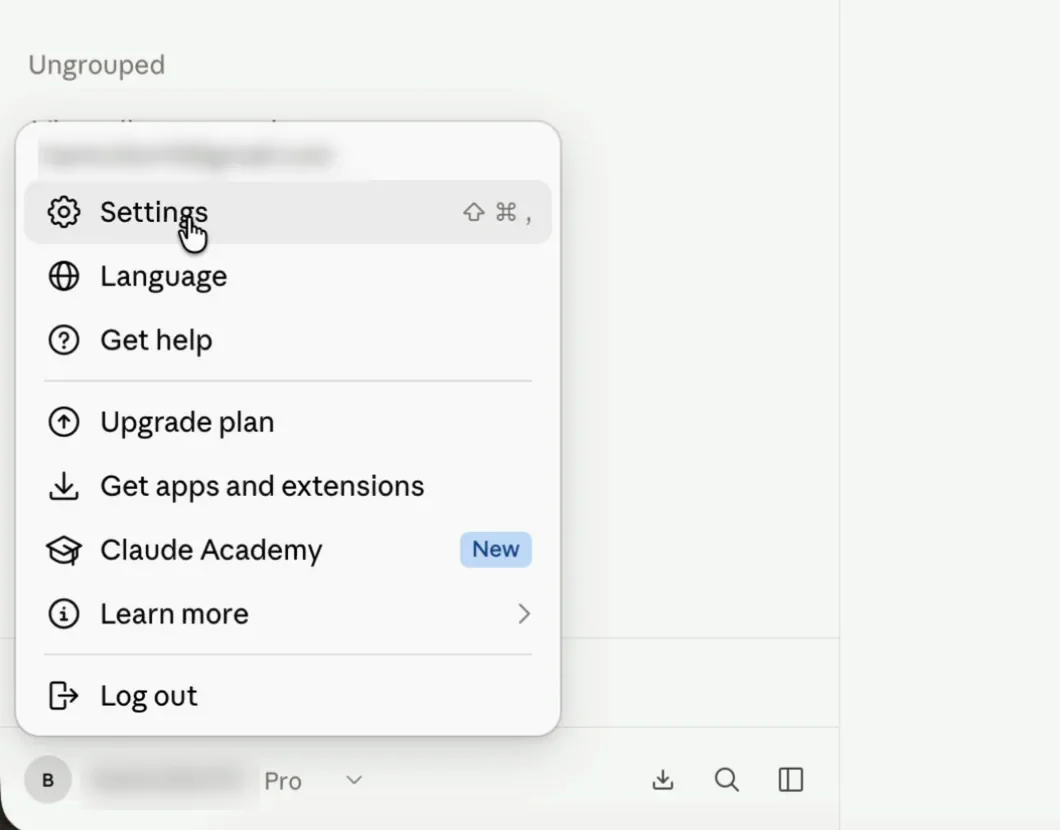
The account menu is bottom-left, under your name — not in the top bar. Search for Connectors
Typeconnectorsinto the search box at the top of Settings and pick Connectors. It also lives under Customize in the sidebar, but searching skips the question of which section Anthropic filed it under this month.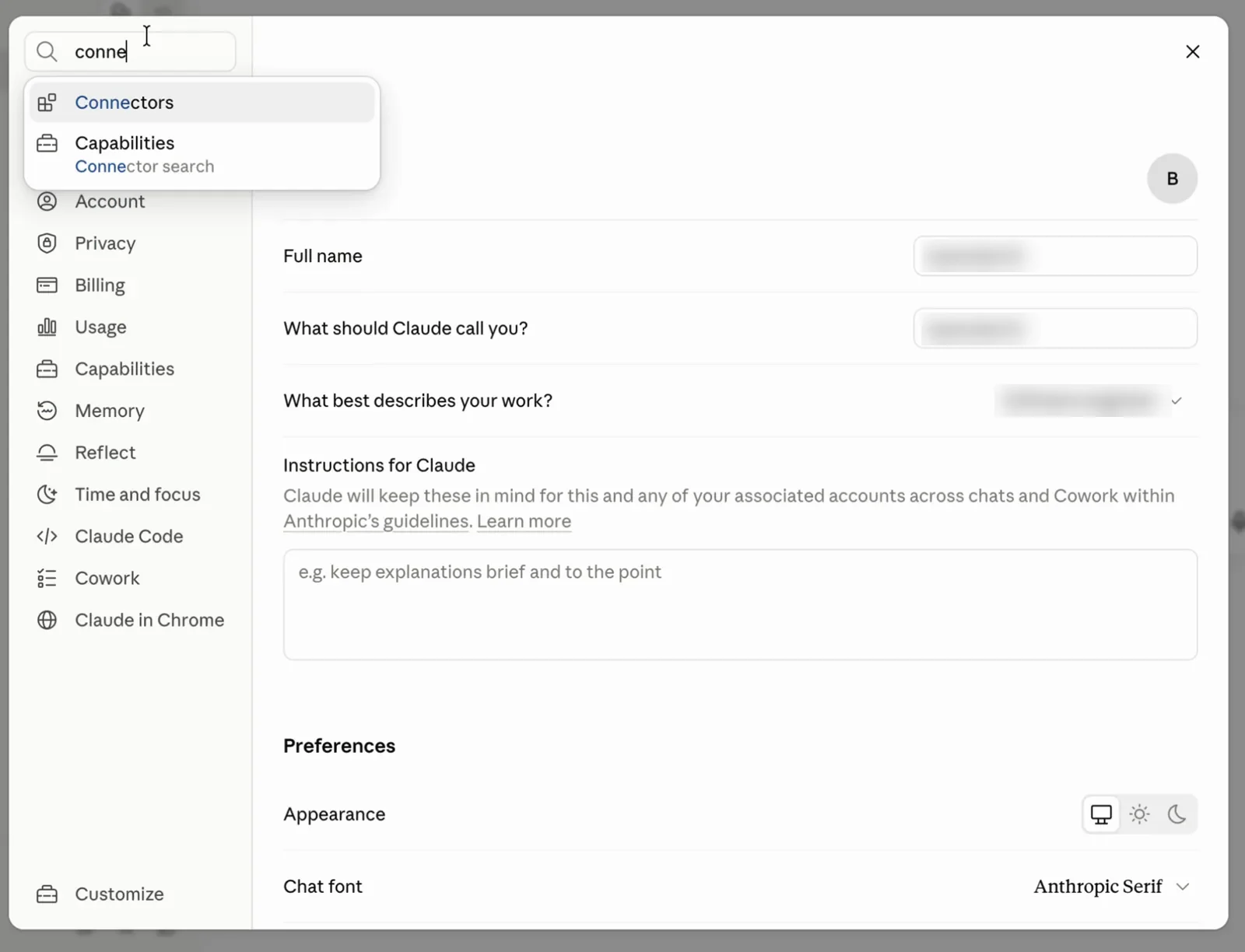
Searching beats hunting the sidebar — this menu has been reorganised more than once. Click Add
The Connectors page lists what you already have, with Discover and Add at the top right. Pagegoat is not in the Discover directory — it is a custom connector, which is what Add is for.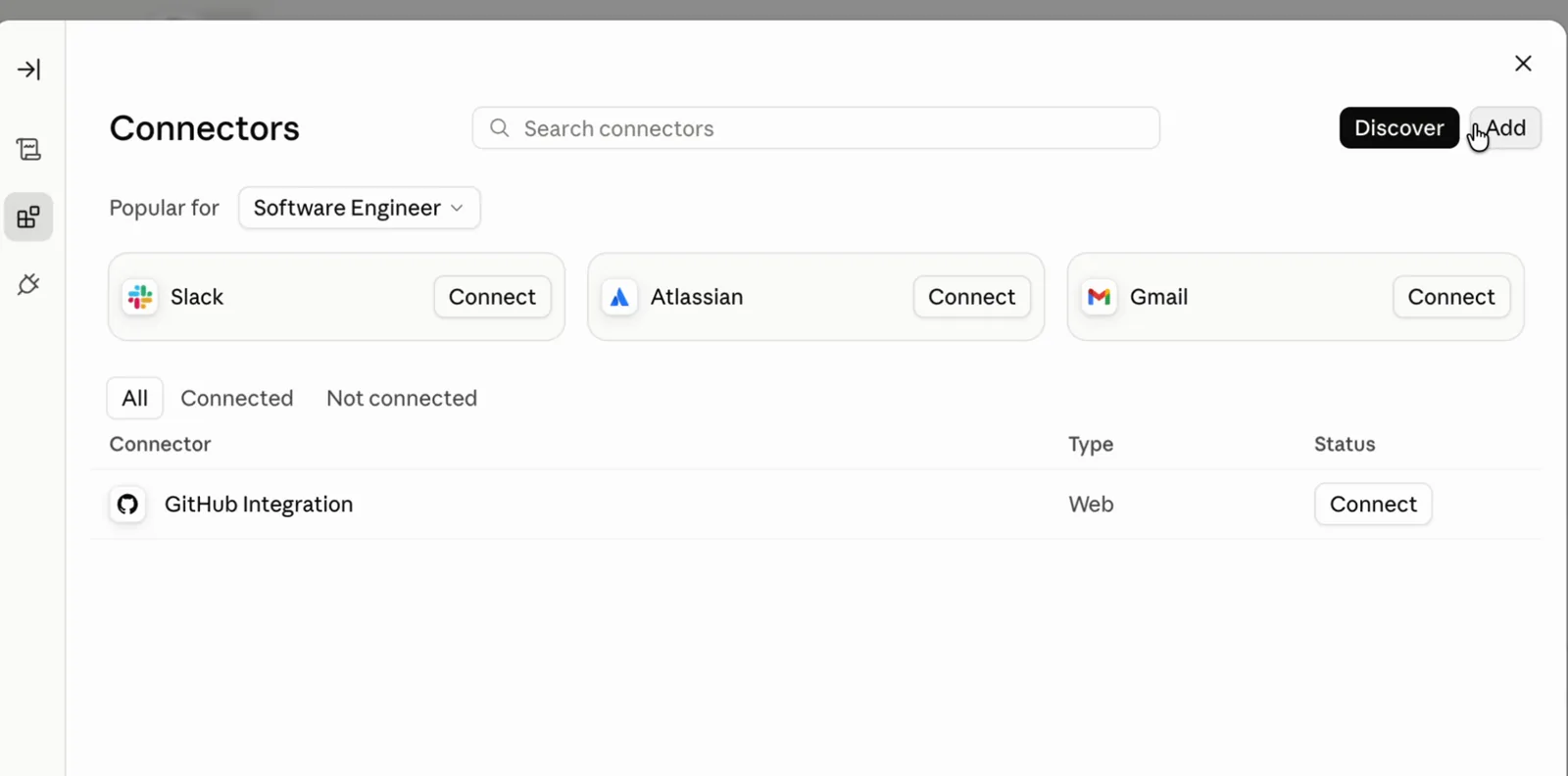
Paste the connector URL
Give it a name you will recognise later — the name is only a label in your own connector list — and paste this into Remote MCP server URL:https://mcp.pagegoat.com/mcpThe trailing/mcpis part of the address. Pasting the bare host resolves to the server's root instead of its streamable-HTTP endpoint, and the connect fails with nothing on screen explaining why.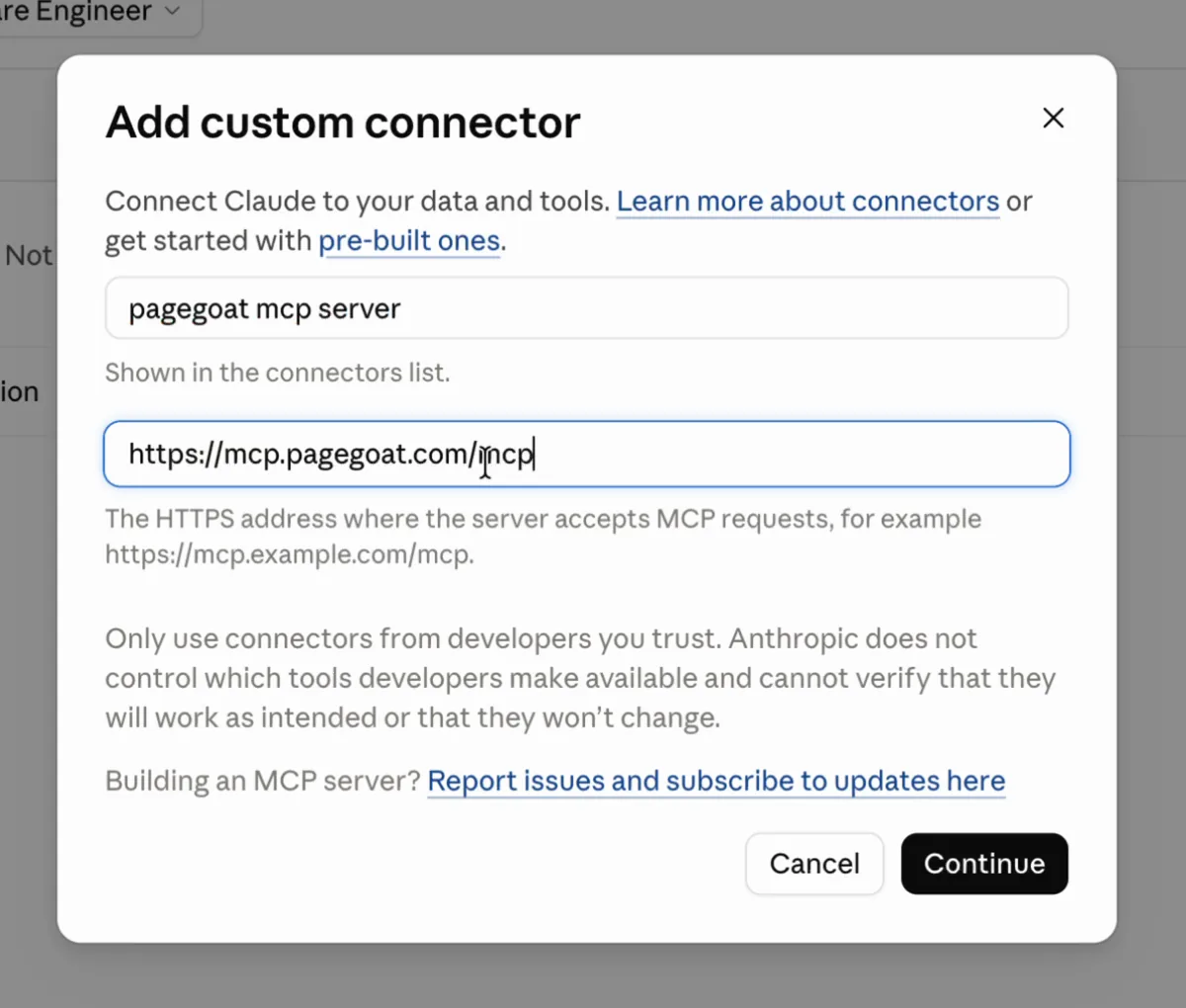
Leave OAuth Client ID and Client Secret blank — Claude registers itself. Leave the OAuth defaults alone
Claude checks the server and fills this in for you: authentication Always required, and No client ID — register one automatically, both marked Detected. That second one is Dynamic Client Registration, and it is the reason there is no key for you to copy anywhere in this process. Click Add, sign in to Pagegoat in the window that opens, and approve.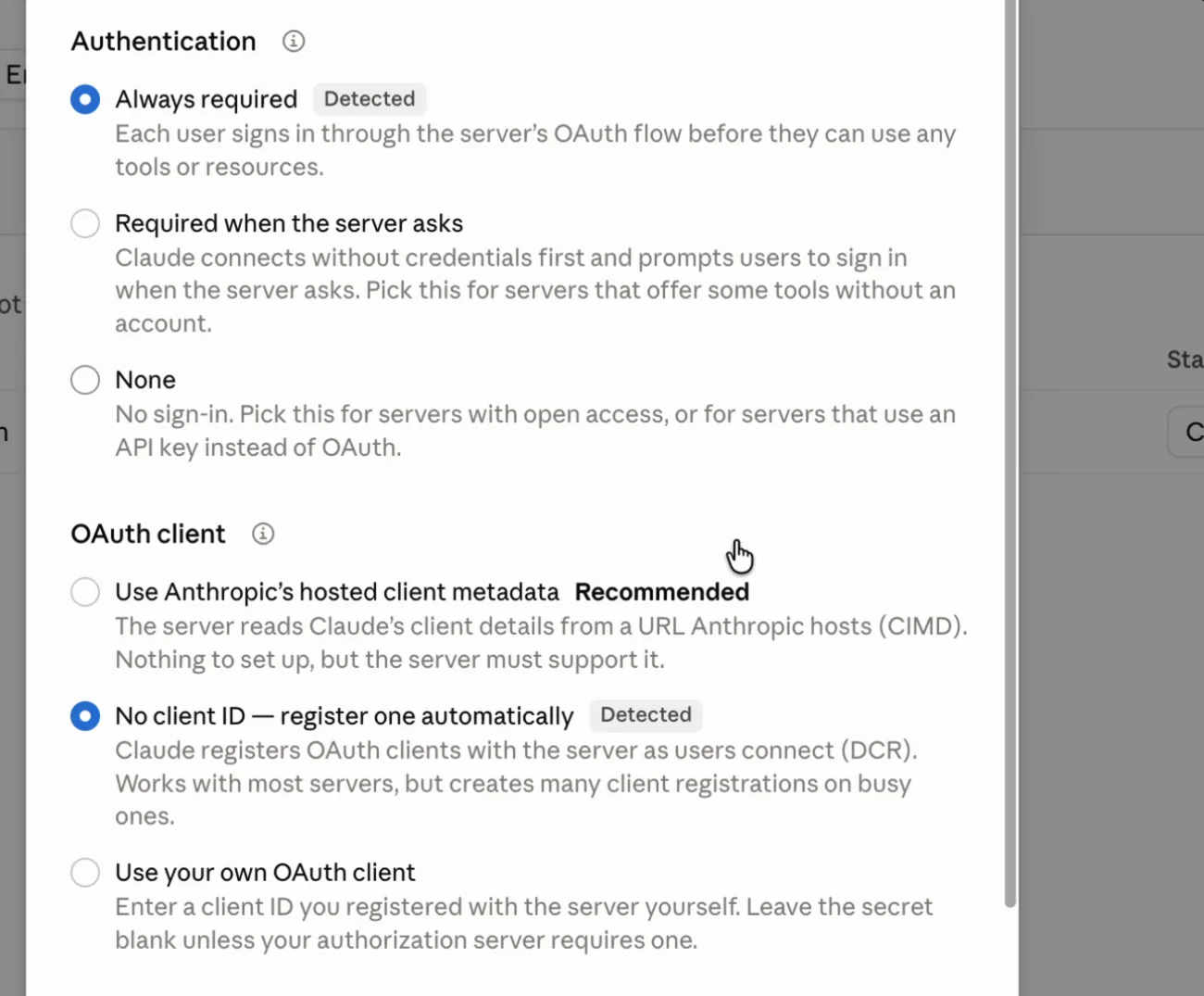
Check the tools came across
A connected Pagegoat shows seven tools, described in plain language rather than by function name. That list is the honest statement of what you have just granted: publishing, updating, listing, reading, changing visibility, deleting, and checking your plan. Nothing that touches billing, your account settings, or your API keys — because the connector never requested those scopes.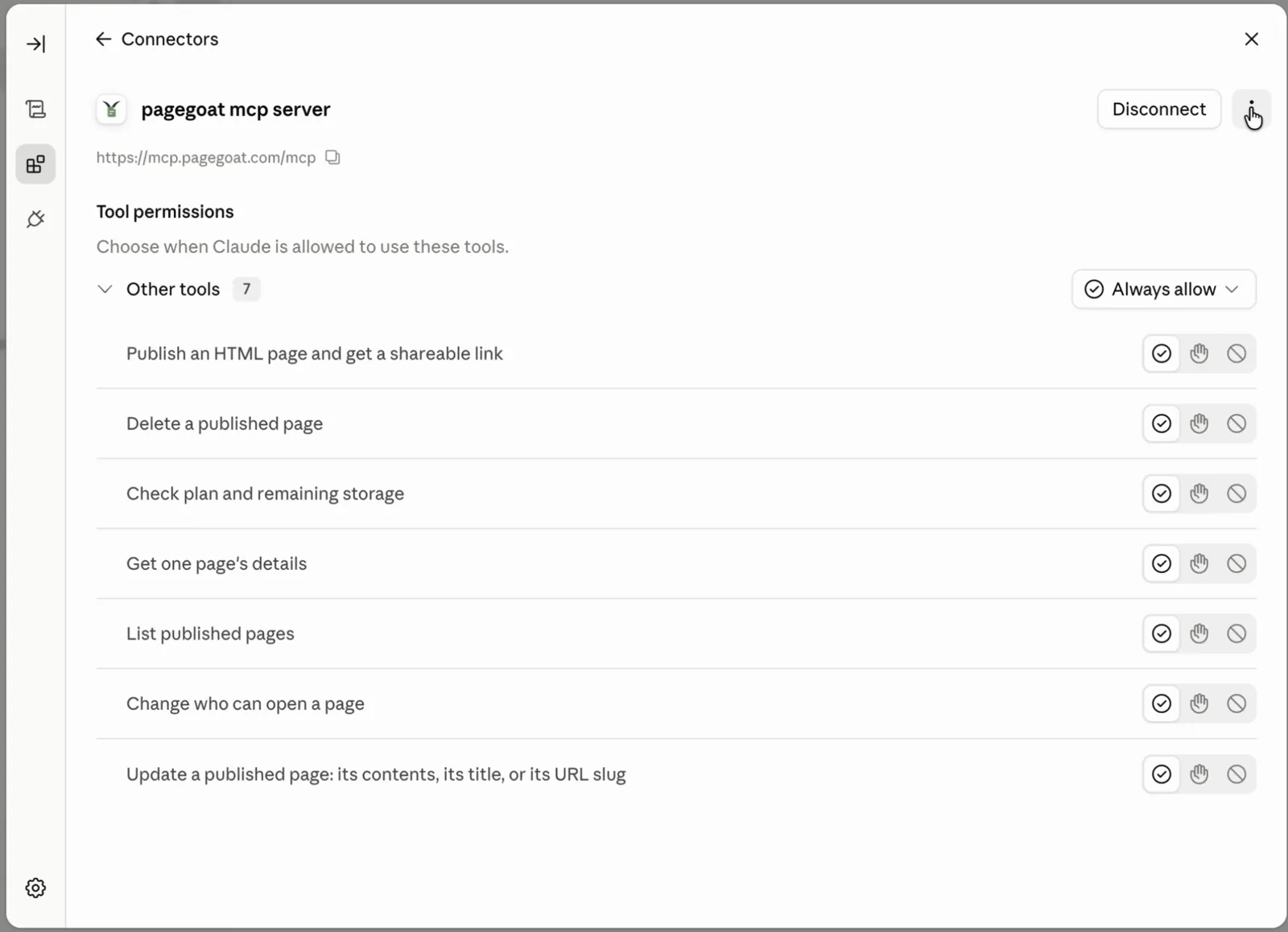
Seven tools, and the per-tool controls that let you require a prompt before any of them run.
Then just ask
Attach or paste an HTML file and say what you want. Claude picks the tools itself.
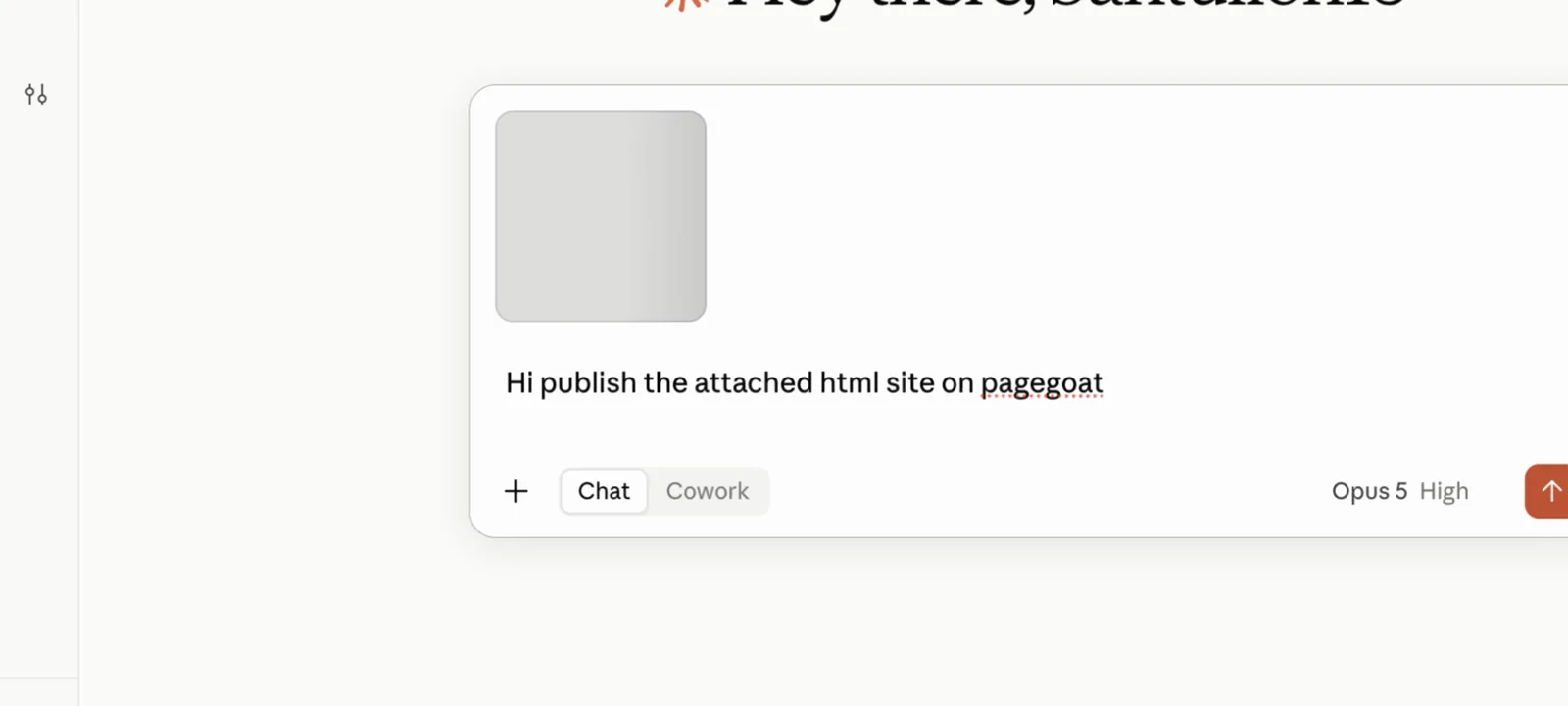
You get the link back in the same turn — and, because Pagegoat's guidance to assistants asks for it, a note about who can currently open it:
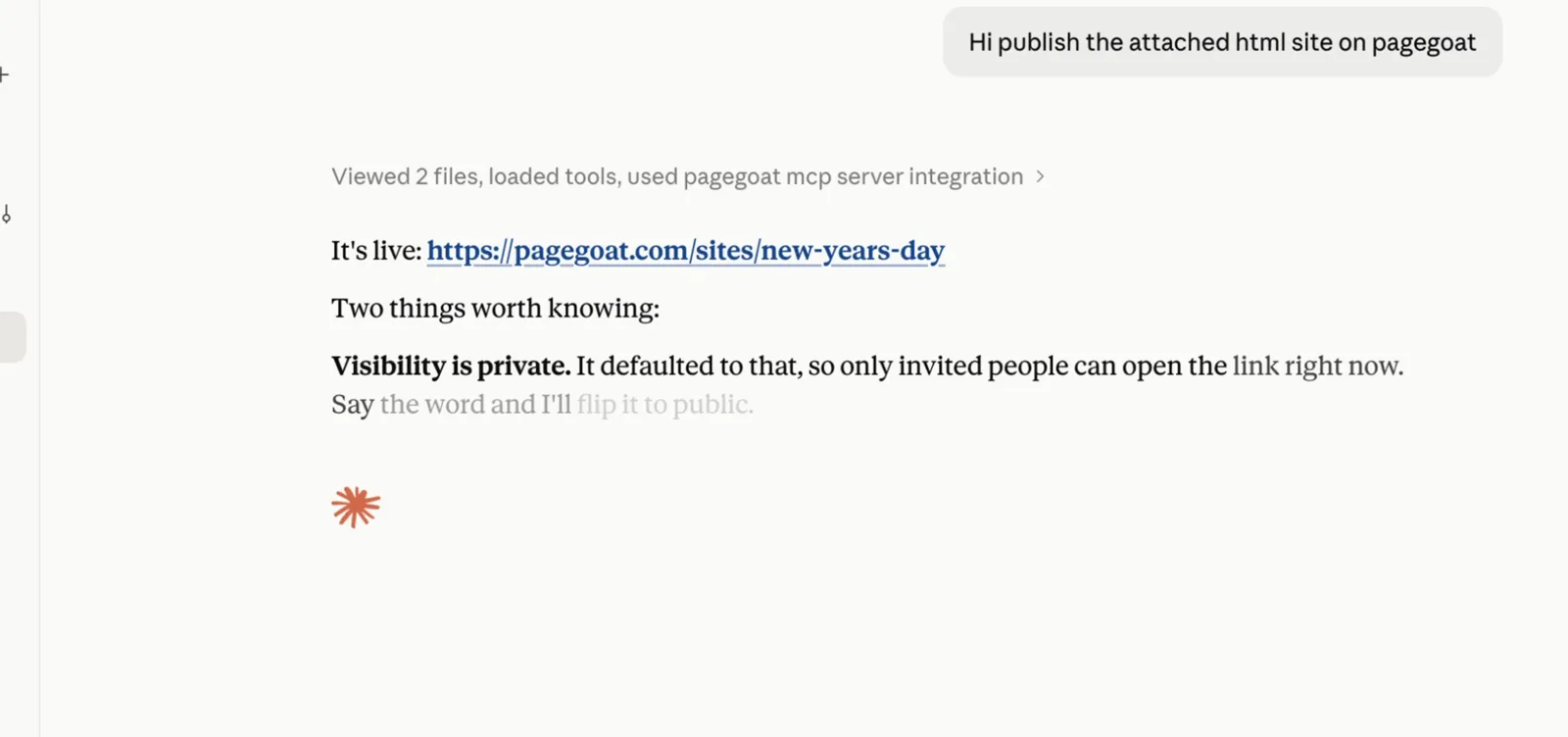
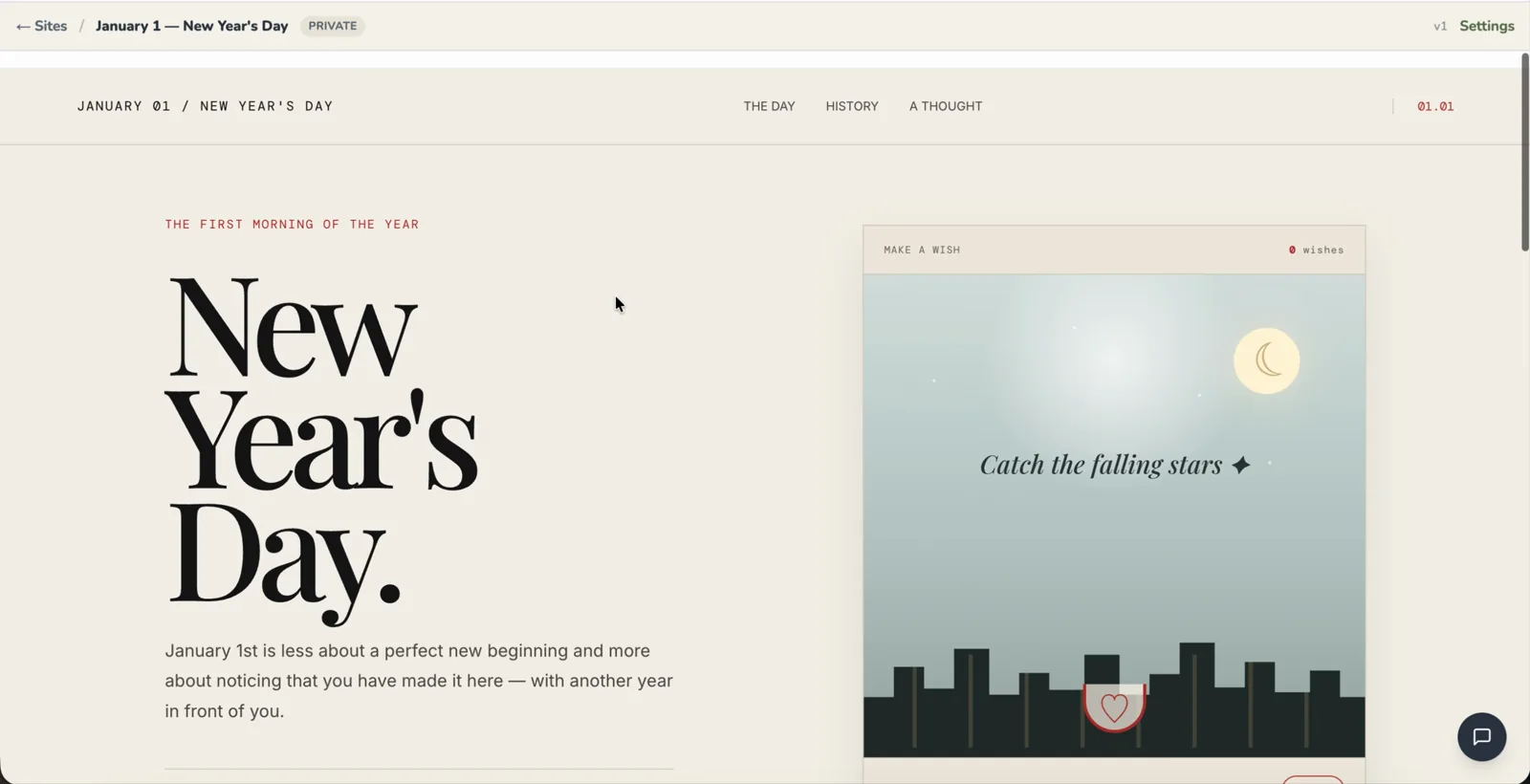
And the page is live, served as the HTML you gave it rather than a converted preview of it:
Other assistants
- ChatGPT — same URL, but write tools need Developer mode turned on first.
- Claude Code — one command, no settings screens at all.
- Everything else — Gemini, Codex CLI, and the REST API for anything that speaks HTTP but not MCP.
Questions
How do I add Pagegoat as a custom connector in Claude.ai?
Open Settings from your name at the bottom-left of claude.ai, search for Connectors, and click Add. Paste https://mcp.pagegoat.com/mcp into the Remote MCP server URL field, including the trailing /mcp, and leave the OAuth client ID and secret blank — Claude registers itself with the server through Dynamic Client Registration, which is why there is no key for you to copy. Click Add, sign in to Pagegoat in the window that opens, and approve. A connected Pagegoat shows seven tools described in plain language: publishing a page, updating one, listing them, reading one, changing who can open it, deleting one, and checking your plan. From then on any conversation can turn HTML into a live link.
I can't find Connectors in Claude's settings. Where is it?
Type connectors into the search box at the top of the Settings dialog rather than hunting the sidebar. Anthropic has moved this section more than once — it currently sits under Customize — and searching finds it regardless of which heading it is filed under this month. If you are on a Team or Enterprise plan there are two different places it can live: a connector you add from your own Settings is yours alone, while one an admin adds from Organization settings appears for everybody in the workspace. If you are on the free plan and the Add button appears to do nothing, check whether you already have a custom connector, because free accounts are limited to one.
Does Claude get access to my Pagegoat account or my API keys?
No. The connector requests only the scopes needed to read and write sites, and the tool list Claude shows after connecting is the complete statement of what it can do. It cannot reach billing, it cannot change your account settings, and it cannot see or create API keys. Authorisation happens over OAuth in your own browser, so no credential is typed into a message or seen by the model, and you can revoke it from the same Connectors page at any time. Claude.ai also lets you require a confirmation prompt before individual tools run, so you can leave reading and listing on automatic while making anything that publishes or deletes ask you first.
Will Claude publish something publicly by accident?
New sites are created private, so the default outcome is a link only you can open rather than a page anyone can read. Pagegoat's published guidance to assistants, at /llms.txt, additionally asks them to tell you what a page's visibility is and to let you decide before widening it — which is why Claude typically reports the visibility unprompted alongside the link. You can still ask for something public in the same sentence that asks for the page. The safer habit for generated work, especially anything containing another person's data, is to leave it gated and widen it once you have read it, because widening a link is one instruction and un-publishing something already public is not.
Give Claude somewhere to put it
Publishing starts at $2.99/month. Connecting takes one paste.
See plans